
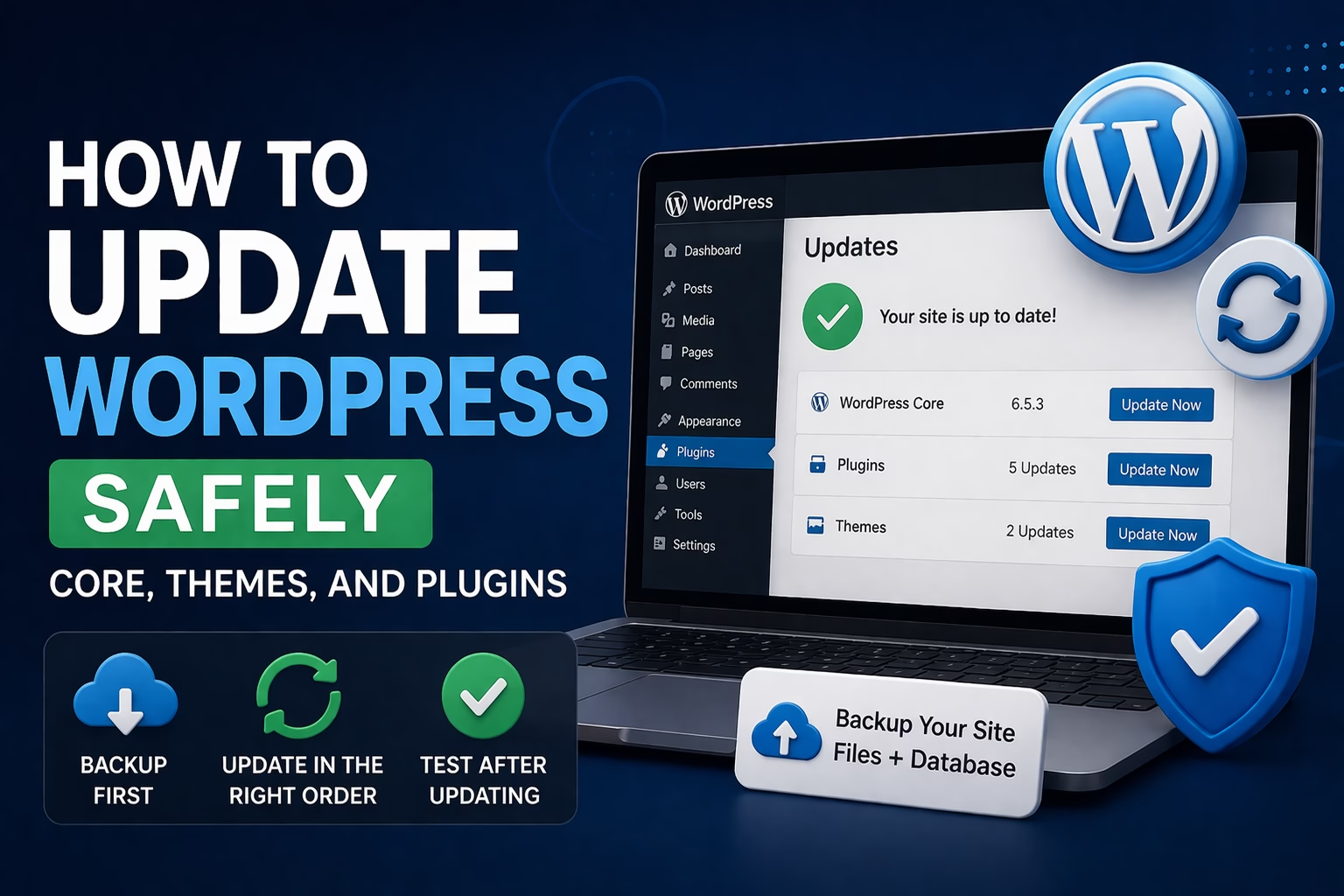
At some point, every WordPress site shows update notifications. You log in, see multiple updates available, and then hesitate. That hesitation is justified.
Updates fix security issues, improve performance, and add features—but they can also break layouts, plugins, or even take your site offline if something goes wrong.
On most sites I manage, updates are one of the most common causes of unexpected problems. Not because updates are bad, but because they’re done without a process.
The goal isn’t to avoid updates. The goal is to update safely and predictably.
Table of Contents
Quick Answer / Summary
To update WordPress safely:
- Take a full backup (files + database)
- Update plugins first
- Update themes
- Update WordPress core last
- Test your site immediately after
If something breaks, restore your backup and identify the issue before retrying.
Why This Matters
WordPress updates are not optional. Running outdated software increases your risk of:
- Security vulnerabilities
- Plugin incompatibility
- Performance issues
- SEO problems if pages break or slow down
At the same time, updating without preparation can cause:
- Broken layouts
- Plugin conflicts
- White screen errors
- Lost functionality
A simple process removes most of that risk.
Step-by-Step: How to Update WordPress Safely
1. Take a Full Backup
Before anything else, create a backup of your site.
This should include:
- Website files
- Database
If you already followed your backup setup, use that system. If not, this is where it becomes critical.
In most sites I build, I always make a manual backup before updates—even if automatic backups are running. It gives you a guaranteed restore point.
2. Check What Needs Updating
Go to:
Dashboard → Updates
You’ll typically see:
- Plugins
- Themes
- WordPress core
Do a quick scan:
- Are there many updates at once?
- Are any major plugins involved (SEO, page builders, forms)?
Large or critical updates deserve extra caution.
3. Update Plugins First
Start with plugins.
Why:
- Most conflicts come from plugins
- Updating them first reduces compatibility issues with core updates
Process:
- Select plugins
- Click Update Plugins
After updating:
- Reload your site
- Check key pages (homepage, blog, contact form)
4. Update Themes
Next, update your theme.
If you’re using a custom or heavily modified theme, be careful:
- Updates may override changes
If you’re using a standard theme (like Astra, GeneratePress, etc.), updates are usually safe.
After updating:
- Check layout
- Check mobile view
- Check navigation
5. Update WordPress Core Last
Now update WordPress itself. If you want to see the official process, you can also refer to the WordPress update guide.
Why last:
- Core updates rely on plugin and theme compatibility
Click:
Update Now
Wait until the process completes fully. Don’t close the browser or refresh mid-update.
6. Test Your Website Immediately
After all updates, test your site.
Check:
- Homepage
- Blog posts
- Contact forms
- Navigation menu
- Mobile version
Also log out and view the site as a visitor.
In my experience, many issues only show up for logged-out users.
Practical Tips from Real Use
Update Regularly (But Not Constantly)
Avoid letting updates pile up.
A good rhythm:
- Once per week for active sites
- Every 2 weeks for smaller sites
Large batches of updates increase risk.
Avoid Updating Everything at Once on Critical Sites
For business or high-traffic sites:
- Update in smaller batches
- Test after each step
This makes it easier to identify what caused a problem.
Use a Staging Site (If Available)
Some hosting providers offer staging environments.
This allows you to:
- Test updates safely
- Fix issues before going live
I usually recommend staging for:
- Ecommerce sites
- Complex plugin setups
- Sites with custom functionality
Watch for Major Version Updates
Not all updates are equal.
Examples:
- Plugin version 1.2 → 1.2.1 = minor
- Plugin version 1.2 → 2.0 = major
Major updates are more likely to cause issues.
Common Mistakes to Avoid
Updating Without a Backup
This is the biggest mistake.
If something breaks and you don’t have a backup:
- Recovery becomes slow and complicated
Ignoring Updates for Months
Outdated plugins are one of the most common security risks.
Delaying updates too long increases:
- Vulnerability risk
- Compatibility issues
Updating During Peak Traffic
Avoid updating when your site is actively used.
If something breaks:
- Visitors will see errors
- You may lose leads or revenue
Not Testing After Updates
Many people update and assume everything works.
Always check:
- Key pages
- Core functionality
Even small issues can affect SEO or conversions.
Updating Custom Code Without Care
If your site has:
- Custom functions
- Modified themes
Updates can override changes.
Always document or isolate custom code.
When to Use This Approach vs Alternatives
Use This Manual Process If:
- You manage your own WordPress site
- You want full control
- Your site is relatively simple
Consider Automatic Updates If:
- Your site is small and low risk
- You keep regular backups
- You use well-supported plugins
WordPress allows automatic updates for:
- Plugins
- Themes
- Core
However, I usually recommend manual updates for beginners until you understand how your site behaves.
Consider Managed Hosting If:
- You don’t want to handle updates yourself
- Your site is business-critical
Managed hosting providers often:
- Handle updates
- Test compatibility
- Provide rollback options
Conclusion
Updating WordPress is not something to avoid—it’s something to manage properly.
The safe approach is simple:
- Back up first
- Update in the correct order
- Test immediately
Once you follow this process a few times, it becomes routine. And more importantly, you reduce the risk of unexpected problems while keeping your site secure and stable.

Etienne Basson works with website systems, SEO-driven site architecture, and technical implementation. He writes practical guides on building, structuring, and optimizing websites for long-term growth.