
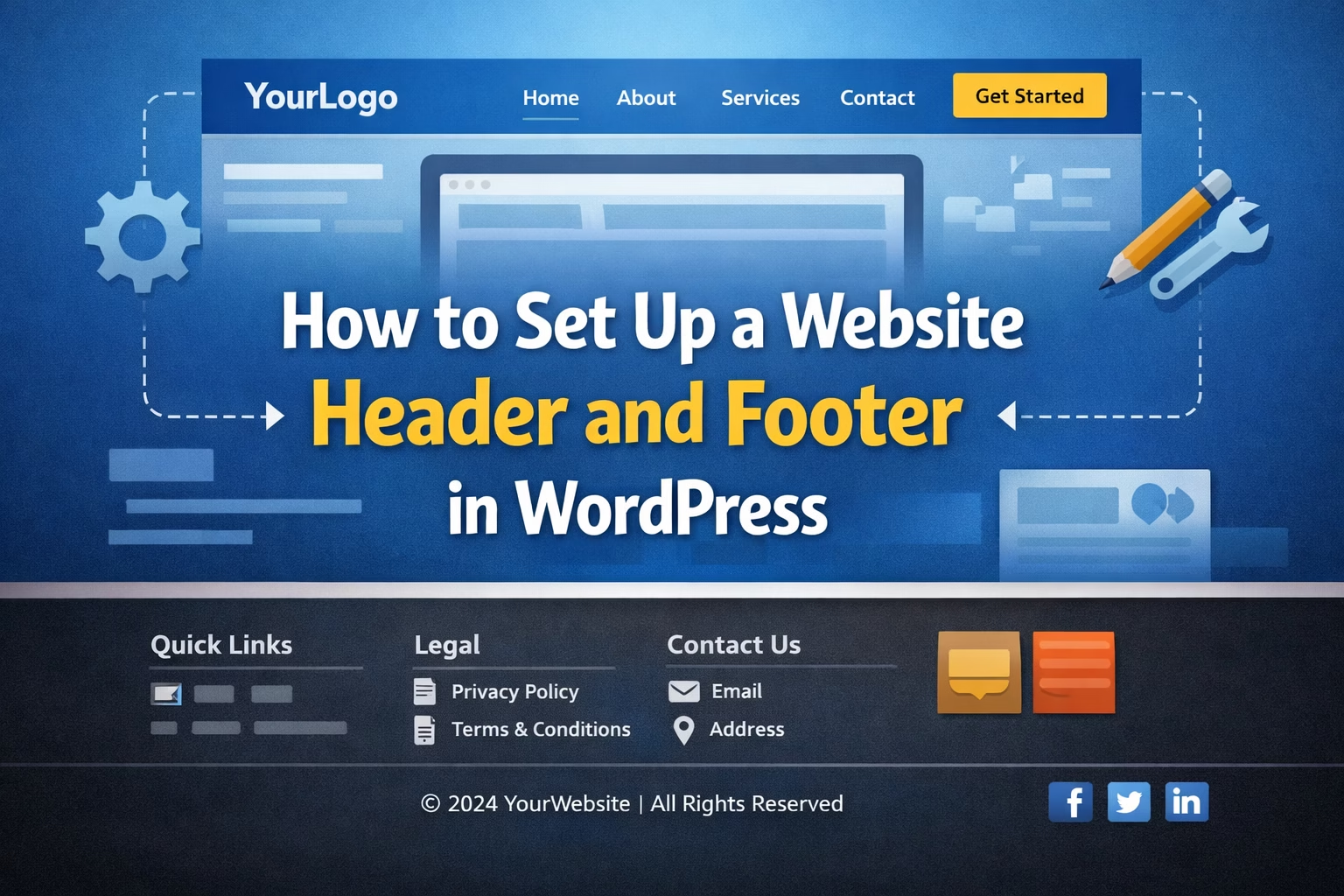
When I review new WordPress sites, one of the most common issues is not the content—it’s the structure around it. The header is cluttered, the footer is either empty or overloaded, and navigation feels inconsistent from page to page.
This usually happens because people focus on pages and posts first, then treat the header and footer as an afterthought. But in reality, these are the parts of your site that every visitor sees on every page. If they’re not set up properly, it affects usability, trust, and even how search engines understand your site.
In most sites I build, I treat the header and footer as part of the foundation, not decoration. Once these are set up correctly, everything else becomes easier to organize.
Table of Contents
Quick Answer / Summary
To set up a website header and footer in WordPress, you need to:
- Create and assign your main navigation menu
- Customize your header layout using your theme or site editor
- Add essential elements like logo, menu, and call-to-action
- Build a structured footer with links, legal pages, and contact details
- Apply these globally so they appear consistently across your site
Most modern themes use either the WordPress Customizer or the Site Editor (block themes) to control these sections.
Why This Matters
The header and footer are not just design elements—they control how users move through your site.
A clear header helps visitors:
- Understand what your site is about
- Find important pages quickly
- Navigate without confusion
A well-structured footer helps with:
- Secondary navigation
- Legal compliance (privacy policy, terms)
- Trust signals (contact details, business info)
From an SEO perspective, these sections also support internal linking and site structure. Search engines rely on consistent navigation to understand how your content is connected.
Step-by-Step Instructions
1. Create Your Main Navigation Menu
Before editing the header, you need a menu. If you have not created one yet, see How to Create a Navigation Menu in WordPress.
Go to:
Dashboard → Appearance → Menus
- Create a new menu (e.g., “Main Menu”)
- Add key pages such as:
- Home
- About
- Services
- Blog
- Contact
- Arrange them in a logical order
- Assign the menu to the Primary Menu location
This menu will be used in your header.
2. Set Up the Header
The exact process depends on your theme.
Option A: Using the Customizer (classic themes)
Go to:
Appearance → Customize → Header
From here you can:
- Upload your logo
- Adjust header layout
- Select menu placement
- Add or remove elements
Option B: Using the Site Editor (block themes)
Go to:
Appearance → Editor (see the WordPress Site Editor documentation if you are unfamiliar with this interface)
- Open the Header template part
- Click to edit elements directly
- Add blocks like:
- Site Logo
- Navigation
- Buttons
In my experience, block themes give more control, but they can feel less intuitive at first.
3. Add Essential Header Elements
Keep the header simple and focused.
Most sites should include:
- Logo (left side)
- Navigation menu (center or right)
- Optional: Call-to-action button (e.g., “Contact” or “Get Started”)
Avoid adding too many items. A crowded header makes navigation harder, not easier.
I usually recommend limiting the main menu to 4–6 items. If you have more pages, they can go in the footer.
4. Build the Footer Structure
The footer is where you place secondary information.
Go to:
- Customizer → Footer (classic themes), or
- Site Editor → Footer template part (block themes)
Add sections such as:
Column 1: Navigation
- About
- Services
- Blog
Column 2: Useful Links
- Contact
- FAQ (if you have one)
Column 3: Legal Pages
- Privacy Policy
- Terms and Conditions
- Disclosure
Column 4 (optional): Contact Info
- Location
- Social links
At the very bottom, include:
- Copyright notice
- Business name or site name
5. Apply the Header and Footer Globally
Both header and footer should appear on every page automatically.
If you’re using:
- Block themes → this is handled through template parts
- Classic themes → this is handled by the theme layout
You don’t need to manually add them to each page. If you do, something is set up incorrectly.
Practical Tips and Observations
In most WordPress sites I build, I follow a few consistent rules:
- Header = primary navigation only
Don’t overload it with links or widgets - Footer = everything else
This is where you can include additional links without cluttering the top - Keep consistency across pages
Changing header layouts between pages creates confusion - Use clear labels
“Services” is better than something vague like “Solutions” - Think about mobile early
Always check how the header collapses into a mobile menu
One thing I often see is people designing the header visually first and thinking about structure later. It works better the other way around.
Common Mistakes
1. Too many menu items
A long menu makes it harder to find anything. Keep it focused.
2. Missing important pages in the footer
Legal pages are often forgotten or hidden. They should always be accessible.
3. Inconsistent navigation structure
If your menu changes across pages, users lose orientation.
4. No clear call-to-action
If your site has a goal (contact, sign-up), the header should support it.
5. Ignoring mobile layout
A header that looks good on desktop can break completely on mobile.
When to Use This vs Alternatives
For most websites, a standard header and footer setup is the best approach.
However, there are cases where you might do something different:
- Landing pages
You may remove the header and footer entirely to reduce distractions - Ecommerce sites
Headers often include cart icons, search bars, and account links - Large content sites
You might use mega menus instead of simple navigation
If you’re building a typical business or content site, stick to a simple, structured approach first.
Conclusion
A clear header and footer make your website easier to use, easier to navigate, and easier to understand.
Set up a focused header with your main navigation, use the footer for supporting links and information, and keep everything consistent across your site. Once these are in place, the rest of your structure becomes much easier to manage.

Etienne Basson works with website systems, SEO-driven site architecture, and technical implementation. He writes practical guides on building, structuring, and optimizing websites for long-term growth.