
When people focus on SEO for a new WordPress site, they usually think about keywords, titles, and content. Images tend to get added quickly without much thought—uploaded straight from a phone or stock download and left as-is.
I see this on a lot of sites. Large image files slow down pages, filenames like IMG_4837.jpg don’t help search engines, and alt text is either missing or stuffed with keywords. Individually, these seem like small issues, but together they affect rankings, page speed, and usability.
If you’re building or improving a site, image optimization is one of the simplest ways to improve both SEO and performance without changing your content strategy. It also plays a direct role in improving WordPress speed and mobile performance, which is something many new sites struggle with.
Table of Contents
Quick Answer / Summary
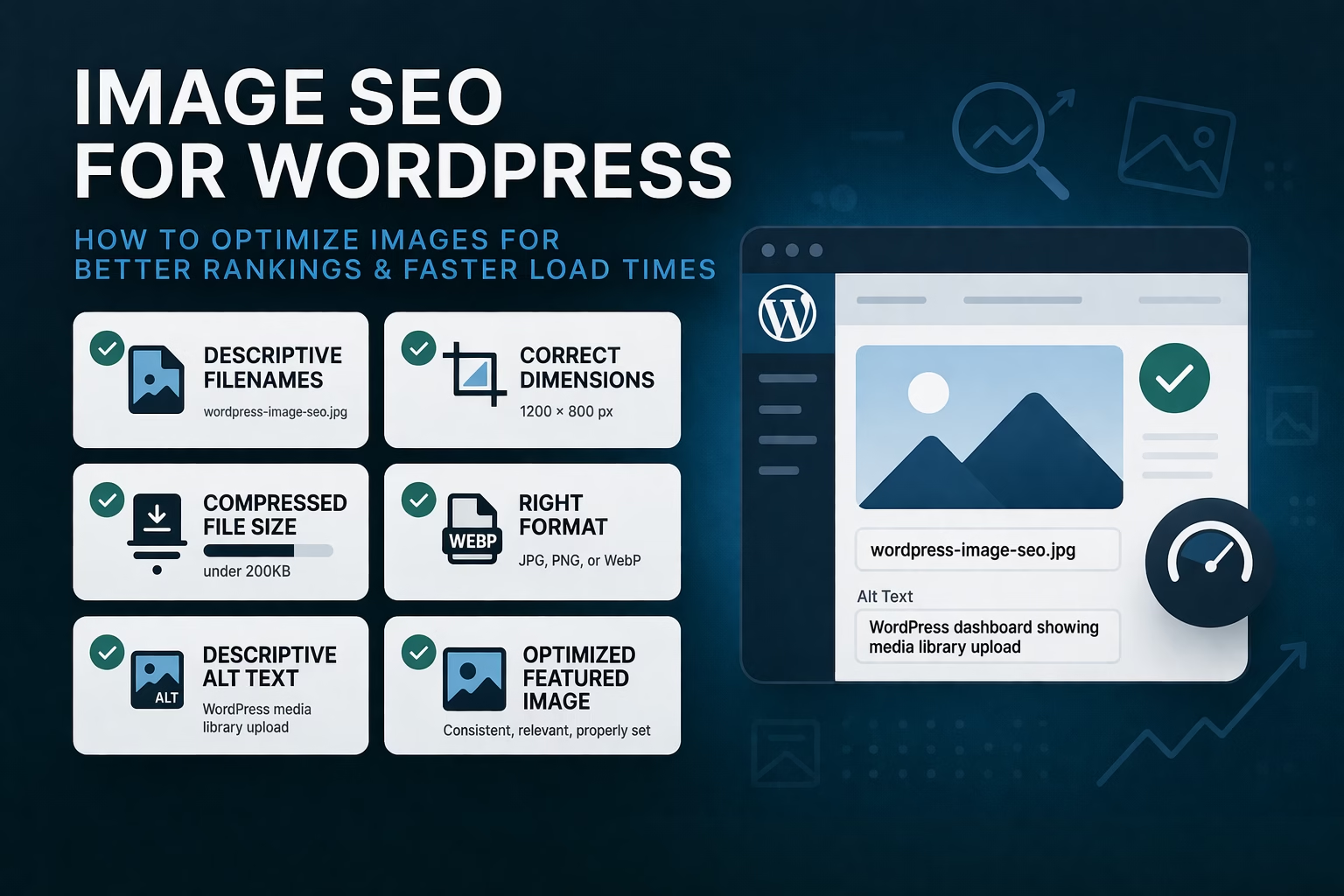
To optimize images for SEO in WordPress, you should:
- Use descriptive filenames before uploading
- Add clear, relevant alt text
- Resize images to the correct dimensions
- Compress images to reduce file size
- Use the right file format (JPEG, PNG, WebP)
- Set featured images properly
- Ensure images support page speed and mobile performance
Why This Matters
Images affect more than just how your site looks.
Search engines use image data—like filenames and alt text—to understand page content. At the same time, large or unoptimized images slow down your site, which impacts both rankings and user experience.
In most sites I build, image optimization is one of the easiest ways to improve load times quickly. It also helps pages appear in image search results, which can bring in additional traffic.
Step-by-Step Instructions
1. Rename Image Files Before Uploading
Before uploading an image to WordPress, change the filename to something descriptive.
Instead of:
IMG_2045.jpg
Use:
wordpress-image-seo-example.jpg
Why this matters:
Search engines read filenames to understand what the image represents. A clear filename adds context to your page.
2. Resize Images to the Correct Dimensions
Do not upload full-size images straight from a camera or stock site.
For most WordPress layouts:
- Blog content images: 800–1200px width
- Full-width images: 1200–1600px max
Uploading oversized images forces WordPress to scale them down, but the file size remains large.
In practice, I usually resize images before uploading. It keeps performance consistent across the site.
3. Compress Images to Reduce File Size
Even properly sized images can be unnecessarily large.
Use compression tools or plugins to reduce file size without noticeable quality loss.
General guideline:
- Aim for under 200KB per image when possible
- Hero or featured images may be slightly larger
Compression directly improves page speed, which is a ranking factor and a usability factor. You can test the impact of your images using Google PageSpeed Insights to see how they affect load times.
4. Choose the Right Image Format
Different formats serve different purposes:
- JPEG (JPG): Best for photos and general images
- PNG: Best for graphics with transparency
- WebP: Best for performance (smaller file sizes with good quality)
If your site supports WebP, it’s usually the best option for most images.
5. Add Alt Text to Every Image
Alt text describes the image for search engines and accessibility.
Write alt text like this:
- Describe what’s actually in the image
- Keep it natural and relevant to the page
Example:
Alt text: WordPress dashboard showing media library upload
Avoid:
- Keyword stuffing
- Writing alt text that doesn’t match the image
When I set this up on WordPress sites, I treat alt text as a short description, not an SEO dumping ground.
6. Use Descriptive Image Titles (Optional but Helpful)
WordPress also allows you to set an image title.
This isn’t as important as alt text, but it can still add context and improve organization in your media library.
7. Set Featured Images Properly
Every blog post should have a featured image.
Why this matters:
- Improves click-through rates
- Helps with social sharing previews
- Adds structure to your site
Make sure featured images are:
- Consistent in size
- Optimized like any other image
- Relevant to the post topic
8. Use Images to Support Content Structure
Images shouldn’t just be decorative.
Use them to:
- Break up long sections
- Support explanations
- Improve readability
Search engines also consider how images relate to surrounding text.
9. Enable Lazy Loading (Usually Automatic)
Most modern WordPress setups include lazy loading by default.
This means images load only when users scroll to them, improving initial page speed.
If you’re using a performance plugin, this is usually handled automatically.
Practical Tips or Observations
- In most sites I build, the biggest issue is oversized images, not missing alt text.
- Consistency matters more than perfection. A site where every image is reasonably optimized performs better than one with a few perfectly optimized images.
- Featured images often get overlooked, but they have a real impact on how posts perform in search and social previews.
- If you’re already working on site speed, image optimization is one of the fastest wins.
Common Mistakes
Uploading Images Without Editing
Uploading directly from a phone or stock site leads to large file sizes and poor filenames.
Keyword Stuffing Alt Text
Adding multiple keywords into alt text makes it less useful and can hurt SEO.
Ignoring Image Size
Even compressed images can be too large if dimensions are excessive.
Using the Wrong Format
Using PNG for photos or large graphics unnecessarily increases file size.
Skipping Featured Images
Posts without featured images often look incomplete and perform worse in previews.
When to Use This vs Alternatives
Basic image optimization works well for most sites.
However, you might consider additional tools if:
- You run a media-heavy site (portfolio, photography, eCommerce)
- You need automated optimization at scale
- You want advanced formats like next-gen delivery or CDN-based optimization
For most WordPress sites, though, manual optimization plus a simple plugin is more than enough.
Conclusion
Image SEO in WordPress comes down to a few practical steps: use clear filenames, add proper alt text, resize images before uploading, and keep file sizes under control.
It’s not complicated, but it does require consistency.
If you apply this across your site, you’ll improve page speed, make your content easier to understand for search engines, and create a better experience for users without changing your core content strategy.

Etienne Basson works with website systems, SEO-driven site architecture, and technical implementation. He writes practical guides on building, structuring, and optimizing websites for long-term growth.