
A website that works on your end doesn’t always work the same way for visitors. Before a site goes live — or after a major update — it’s worth running through a structured set of checks. Forms fail silently, indexing gets left disabled, images break on mobile, and analytics miss the first week of traffic. None of these are difficult to fix, but they’re easy to miss if you skip the testing stage.
This checklist covers the main areas to test before publishing a WordPress site. It assumes the site is built and the content is in place — this is the final pass before you switch it on.
Quick Launch Checklist Summary
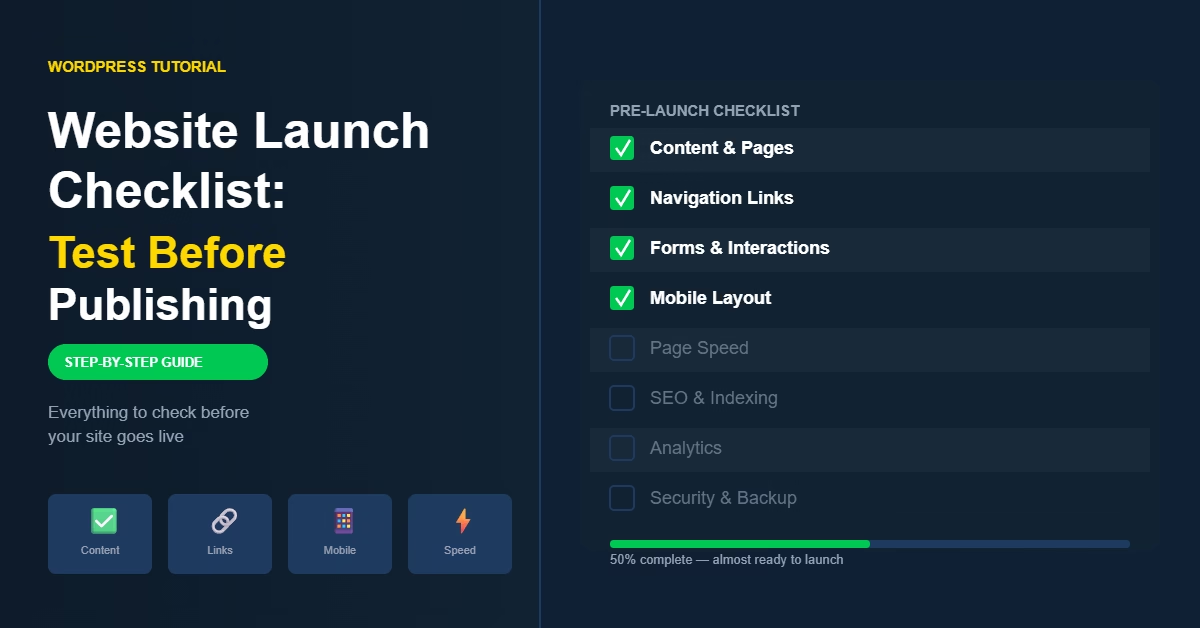
Before going through the full checklist, here’s what you’re testing: content and pages, navigation and internal links, forms and interactions, mobile layout, page speed, SEO and indexing settings, analytics, security and backups, and basic accessibility. If all of these pass, the site is ready.
Why Pre-Launch Testing Matters
The same problems come up on almost every new site. The contact form doesn’t send emails. A menu item points to the wrong page. The search engine indexing toggle is still set to discourage crawlers from the development phase. The analytics snippet was never added.
Each of these is a five-minute fix, but each one also damages credibility or costs data if it goes unnoticed after launch. Running through a checklist once before publishing catches almost all of them.
Check Content and Page Completeness
Start with the content itself. Go through every published page and look for placeholder text, unfinished sections, or anything that was added as a draft note and never updated. These are easy to miss when you’ve been working on a site for a while.
Check that key pages exist and are accessible from the navigation or footer:
- Homepage — clearly explains what the site is about
- About page — introduces the person or business behind the site
- Contact page — includes a working form or contact details
- Privacy policy — required if you collect any user data
Confirm that post and page formatting is consistent — headings are structured, images have alt text, and nothing looks out of place visually.
Test Navigation and Internal Links
Click through every item in the main menu and confirm it loads the right page. Then work through internal links in posts and pages — these often break during development when URLs change or pages get restructured.
When I test sites before launch, I navigate through them the way a new visitor would — starting on the homepage and following links until I reach the deepest pages. That process usually surfaces any broken routes that automated checks miss.
Any 404 errors need to be corrected before launch. If a page URL changed, set up a 301 redirect from the old path to the new one.
Test Forms and Interactive Features
Forms are one of the most common launch failures. The form appears to submit successfully on the page, but the email notification never arrives — usually because of a server mail configuration issue.
For each form on the site, submit a real test entry and confirm:
- The form submits without errors
- A confirmation message appears on screen
- The notification email arrives in the inbox
If email delivery is unreliable, setting up SMTP through a plugin is the reliable fix. Test any other interactive features — booking systems, calculators, payment flows — using the same approach: submit a real test and verify the full outcome.
Check Mobile and Responsive Layout
Most visitors arrive on mobile, so a layout that breaks on smaller screens is a significant problem. Use your browser’s built-in device emulation (available in the developer tools in Chrome and Firefox) to preview the site at different screen sizes.
Check for:
- Menu — opens and closes correctly on mobile
- Text — readable without zooming
- Images — resize and don’t overflow their containers
- Buttons and tap targets — large enough to tap accurately
- No horizontal scrolling on any page
If possible, test on a real phone as well. Emulation is accurate for most layout issues, but real device testing catches edge cases that emulation misses.
Check Page Speed and Performance
Slow loading drives visitors away before they engage with the content. The most common cause on new WordPress sites is large, unoptimised images — they’re often uploaded at full resolution without compression.
Run the site through W3C’s validation tools to check for markup issues, and use Google PageSpeed Insights to get a performance score with specific recommendations. Both flag problems that are straightforward to fix before launch.
Key things to address before launch:
- Compress all images — use WebP format where possible
- Enable caching through a plugin like LiteSpeed Cache
- Remove any plugins or scripts not actively in use
Verify SEO and Indexing Settings
This is the most common mistake I see on newly launched sites. During development, WordPress has a setting to discourage search engines from indexing the site. It’s easy to forget to turn it off.
Go to Settings → Reading in WordPress and confirm the “Discourage search engines from indexing this site” checkbox is unchecked before launch.
Also check:
- Page titles and meta descriptions are set for key pages
- The sitemap URL is accessible — typically at
/wp-sitemap.xml - Canonical URLs are correct and there’s no duplicate content from www vs non-www
Confirm Analytics and Tracking
Install analytics before launch, not after. Once the site is live, every visit matters — missing the first week of traffic means missing early data about how visitors find and use the site.
After installing Google Analytics or your preferred tracking tool, visit the site yourself and confirm your session appears in the real-time report. This confirms the snippet is firing correctly.
If you have conversion goals set up — form submissions, button clicks, purchases — test each one and verify it registers in the analytics dashboard.
Security and Backup Checks
Before launch, confirm that automated backups are active and running. The first backup should exist before the site is publicly accessible — that way, if something goes wrong in the first few days, you have a clean restore point. See the full guide on how to back up a WordPress website for setup instructions.
Also confirm:
- WordPress core, themes, and plugins are updated to current versions
- Admin username is not “admin” — change it if it is
- A strong, unique password is in use for the admin account
- SSL is active and the site loads over HTTPS without mixed content warnings
Accessibility Basics
Full accessibility compliance is a significant undertaking, but a few basic checks take minutes and cover most common issues:
- All images have descriptive alt text
- Heading structure is logical — H1 once per page, then H2 and H3 in order
- Text has sufficient contrast against the background
- Links are distinguishable from surrounding text
- The site can be navigated using only a keyboard
These improvements benefit all visitors, not just those using assistive technology. They also reduce the risk of issues that could affect SEO.
Common Pre-Launch Mistakes
These problems appear frequently on sites that skip the testing stage:
- Search engine indexing left disabled after development
- Contact form submitting but email notifications not arriving
- Broken internal links from URL changes during build
- Analytics not installed before launch
- Large uncompressed images causing slow load times
- Missing privacy policy on a site that collects user data
- SSL not properly configured — site loading over HTTP on some pages
- Placeholder or draft content still visible on published pages
Before publishing, also make sure your social media profiles are linked from the site. Adding social media links to a WordPress website covers the footer, navigation menu, and block editor methods, along with tips on consistent placement and styling.
When the Site Is Ready
Work through the checklist systematically — content, navigation, forms, mobile, speed, SEO, analytics, security, accessibility. If each area passes, the site is ready to publish. If any area has a problem, fix it before switching the site live.
This checklist is the final step in a complete build process. If you’re working through setting up a site from scratch, the essential steps to build a website guide covers every stage from planning and hosting through to launch in the right order.
The checklist takes around an hour on a typical small site. That’s a worthwhile investment against the alternative: discovering a broken contact form two weeks after launch when a potential client tried to reach you and got nothing back.

Etienne Basson works with website systems, SEO-driven site architecture, and technical implementation. He writes practical guides on building, structuring, and optimizing websites for long-term growth.