
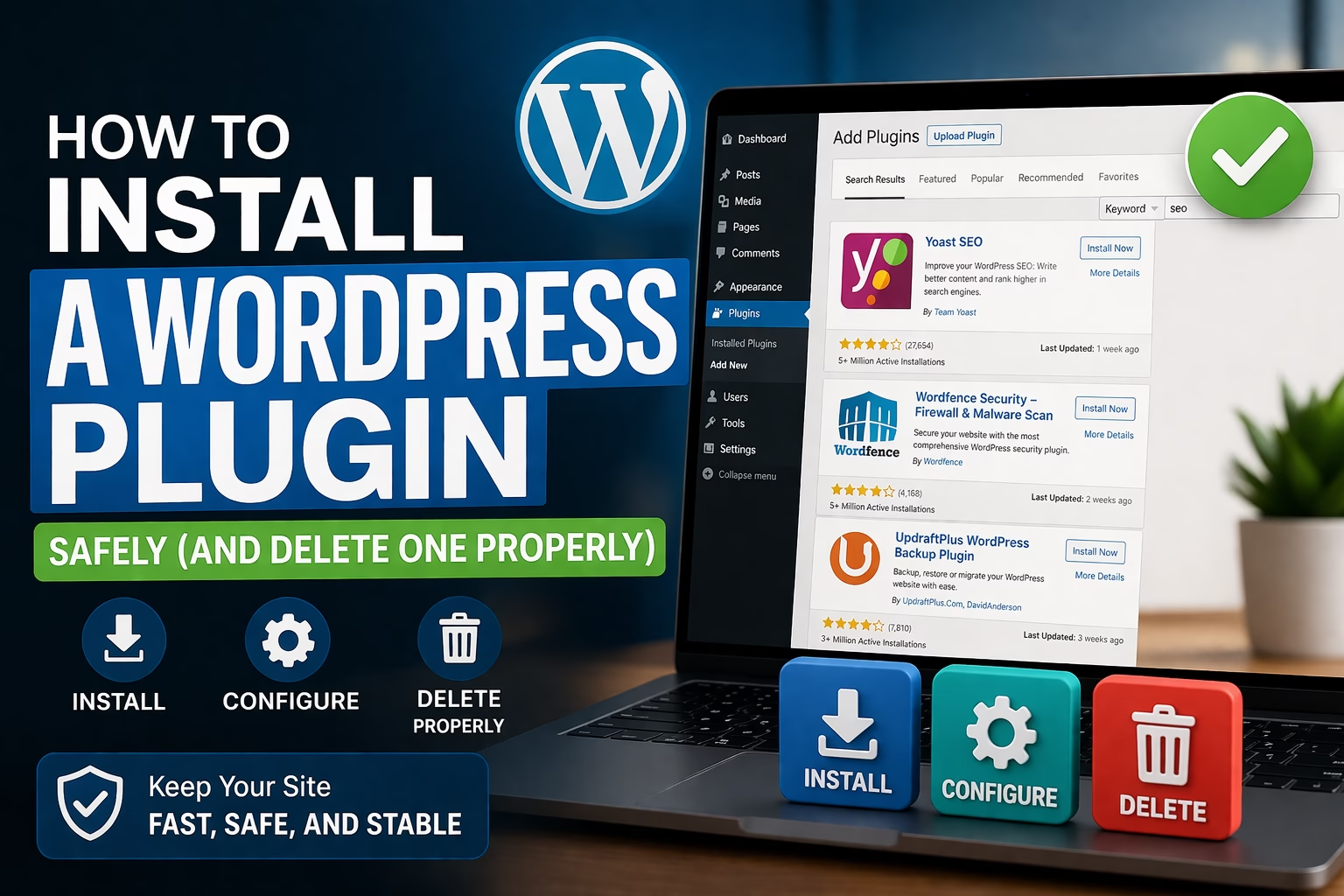
Most WordPress sites rely on plugins for essential features—SEO, backups, security, forms, and performance. Installing a plugin is simple, but installing it correctly is where many sites start to break.
I’ve seen sites slow down, throw errors, or even go offline because a plugin was installed without checking compatibility, configured incorrectly, or removed the wrong way. It’s not the installation itself that causes problems—it’s everything around it.
If you understand how to install, test, update, and remove plugins properly, you avoid most of the common issues people run into with WordPress.
Table of Contents
Quick Answer / Summary
To install a WordPress plugin safely:
- Go to Plugins → Add New
- Search for the plugin
- Click Install Now
- Click Activate
- Configure the plugin settings
- Test your website
To remove a plugin properly:
- Deactivate the plugin first
- Then click Delete
- Check your site still works after removal
Why This Matters
Plugins directly affect how your website functions. They can:
- Add critical features (SEO, backups, forms)
- Improve performance and security
- Or break your site if handled incorrectly
In most sites I build, plugin issues are one of the top causes of problems—especially when too many plugins are installed or when they’re not maintained.
Doing this properly means:
- Your site stays stable
- You avoid conflicts between plugins
- You keep your website fast and secure
Step-by-Step Instructions
Step 1: Go to the Plugin Directory
In your WordPress dashboard:
- Navigate to Plugins → Add New
This is where you install plugins from the official WordPress plugin repository.
Step 2: Search for the Plugin
Use the search bar to find the plugin you want.
Before installing, check:
- Number of active installations
- Last updated date
- Ratings and reviews
In my experience, plugins that are regularly updated and widely used are far less likely to cause problems.
Step 3: Click “Install Now”
Once you’ve found the plugin:
- Click Install Now
WordPress will download and install it automatically.
Step 4: Activate the Plugin
After installation:
- Click Activate
This turns the plugin on and allows it to start working on your site.
Step 5: Configure the Plugin Settings
Most plugins don’t work properly until you configure them.
Look for:
- A new menu item in your dashboard
- Settings under Settings or the plugin’s own menu
When I set up plugins on WordPress sites, I always go through the settings immediately. Leaving default settings untouched is a common mistake and often leads to poor results.
Step 6: Test Your Website
After activation and setup:
- Visit your homepage
- Check key pages (contact, blog, etc.)
- Test the feature you installed
This step is critical. If something breaks, you’ll catch it immediately instead of days later.
How to Upload a Plugin Manually
Some plugins (especially premium ones) are not in the WordPress directory.
To install manually:
- Go to Plugins → Add New
- Click Upload Plugin
- Upload the
.zipfile - Click Install Now
- Activate the plugin
I usually only install plugins this way when using premium tools or custom plugins.
How to Delete a WordPress Plugin Properly
Removing a plugin is just as important as installing one.
Step 1: Deactivate the Plugin
Go to:
- Plugins → Installed Plugins
Click Deactivate first.
This stops the plugin from running.
Step 2: Delete the Plugin
Once deactivated:
- Click Delete
This removes the plugin files from your site.
Step 3: Test Your Site Again
After deleting:
- Check your pages
- Make sure nothing broke
- Confirm that no functionality is missing
In many cases, people delete a plugin without realizing it was handling something important (like redirects, forms, or SEO settings).
Practical Tips and Observations
1. Don’t install too many plugins
More plugins don’t automatically mean better functionality. In most sites I build, I keep plugins to only what’s necessary.
2. Install one plugin at a time
If you install multiple plugins at once and something breaks, it becomes difficult to identify the cause.
3. Always check compatibility
Make sure the plugin:
- Works with your version of WordPress
- Is still actively maintained
4. Use plugins with clear purpose
Avoid installing plugins “just in case.” Every plugin should solve a specific problem.
5. Keep plugins updated
Outdated plugins are one of the most common security risks.
Common Mistakes
Installing without checking reviews or updates
Old or poorly maintained plugins often cause issues.
Activating without configuring
Many plugins need setup before they work properly.
Deleting without deactivating first
This can lead to unexpected errors.
Using multiple plugins for the same function
For example, running two SEO plugins or two caching plugins at the same time.
Not testing after installation
Problems often go unnoticed until much later.
When to Use This vs Alternatives
Installing plugins is the standard way to extend WordPress, but sometimes alternatives are better.
- Use a plugin when you need functionality like SEO, backups, or forms
- Use built-in features or theme options when possible to reduce plugin load
- Use custom code only if you know exactly what you’re doing or working with a developer
In my experience, most websites work best with a small set of well-chosen plugins rather than a large collection of overlapping tools.
Conclusion
Installing a WordPress plugin is quick, but doing it properly involves more than clicking “Install.”
The key steps are:
- Choose reliable plugins
- Configure them correctly
- Test your site after activation
- Remove unused plugins properly
If you follow this process consistently, your site stays stable, faster, and much easier to manage as it grows.

Etienne Basson works with website systems, SEO-driven site architecture, and technical implementation. He writes practical guides on building, structuring, and optimizing websites for long-term growth.