
WordPress has a built-in task scheduler called WP-Cron. It handles things like publishing scheduled posts, sending automated emails, running plugin routines, and triggering backups. Most site owners never think about it — until something stops working.
The problem is that WP-Cron doesn’t run on a real schedule. It fires when someone visits your site. On a busy site that’s fine, but on a low-traffic site, scheduled tasks can be delayed or skipped entirely. A post scheduled for 9am might not publish until the next visitor arrives at 11am.
This guide explains how WP-Cron works, how to check whether it’s running correctly on your site, and how to replace it with a real server cron job for reliable scheduling.
What Is WP-Cron?
WP-Cron is WordPress’s internal scheduling system. When a visitor loads any page on your site, WordPress checks a list of scheduled tasks and runs any that are due. Tasks are registered by WordPress core and plugins using hooks — things like wp_scheduled_delete, wp_update_plugins, and any custom schedules your plugins define.
Because it’s visitor-triggered, WP-Cron works well enough on most sites. The issue only becomes noticeable when your site has irregular traffic, when precision timing matters, or when you’re running plugins that rely on scheduled tasks firing at exact intervals.
Quick Answer
To make WordPress scheduled tasks run reliably, disable WP-Cron in wp-config.php and replace it with a real server cron job that calls wp-cron.php on a set interval — typically every minute or every five minutes.
Why WP-Cron Causes Problems on Low-Traffic Sites
On a site that receives consistent traffic throughout the day, WP-Cron fires frequently enough that timing delays are negligible. On a site that gets ten visits a day, a task scheduled at 3am might not run until someone visits at noon.
This matters for: scheduled posts that need to publish on time, email sequences triggered by time-based logic, backup plugins that run on a schedule, and cache-clearing routines.
The fix is straightforward: disable the visitor-triggered firing and replace it with a system-level cron job that calls WordPress’s scheduler directly.
How to Check What’s Scheduled in WP-Cron
Before making changes, it helps to see what tasks are currently registered. The WP Crontrol plugin (free, from the WordPress plugin repository) gives you a full list of scheduled events, their intervals, and when they’re next due.
Install it from Plugins → Add New, search for WP Crontrol, and activate it. Then go to Tools → Cron Events to see everything currently scheduled. You can also add custom events or delete stuck ones from here.
This is useful for diagnosing problems — if a plugin’s scheduled task is missing from the list, that’s why it isn’t running.
How to Disable WP-Cron and Use a Real Cron Job
Step 1: Disable WP-Cron in wp-config.php
Open your wp-config.php file via your hosting file manager or FTP. Find the line that says:
/* That's all, stop editing! Happy publishing. */Add the following line directly above it:
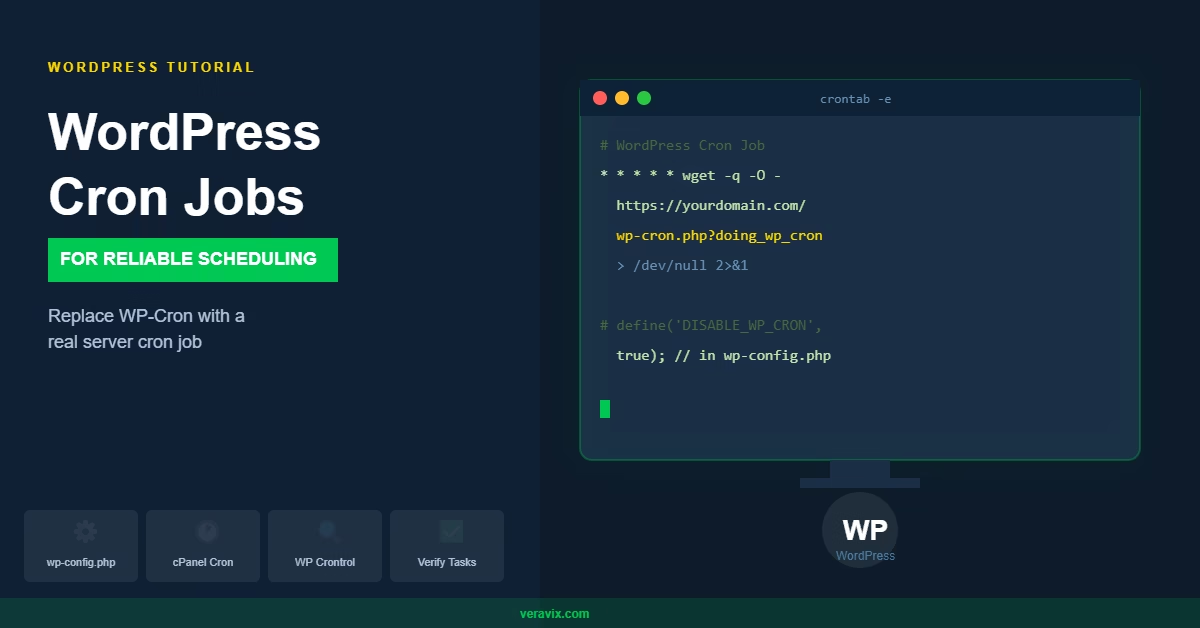
define('DISABLE_WP_CRON', true);This stops WordPress from triggering its scheduler on every page load. Tasks will no longer fire until you set up the server-side cron job in the next step.
Step 2: Set Up a Server Cron Job
Log in to your hosting control panel — most hosts use cPanel or a similar interface. Look for Cron Jobs in the Advanced section.
Set the frequency to every minute or every five minutes. The command to run is:
wget -q -O - https://yourdomain.com/wp-cron.php?doing_wp_cron > /dev/null 2>&1Replace yourdomain.com with your actual domain. The > /dev/null 2>&1 part suppresses output so you don’t get emailed every time the cron runs.
Alternatively, if your host supports curl:
curl -s https://yourdomain.com/wp-cron.php?doing_wp_cron > /dev/null 2>&1Save the cron job. From this point, your server will call WordPress’s scheduler directly at the interval you set, independent of site traffic.
Step 3: Verify It’s Working
After setting up the server cron job, go back to Tools → Cron Events in WP Crontrol and check that the Next Run timestamps are updating as expected. If you added the cron job at 2pm and set it to run every five minutes, tasks should be showing next-run times that match your interval.
You can also temporarily add a test event via WP Crontrol and confirm it fires correctly.
Practical Tips
In most WordPress sites I set up, I run the server cron every minute. This keeps scheduled posts, email triggers, and backup routines as close to on-time as possible without any meaningful server load.
If your host doesn’t offer cron jobs directly in the control panel, check their documentation — many hosts provide SSH access where you can edit the crontab manually using crontab -e.
Some managed WordPress hosts handle cron job replacement automatically at the server level. If you’re on a host like Kinsta or WP Engine, check their documentation before making wp-config.php changes — you may not need to do this at all.
If you’re also running scheduled backups, it’s worth reading how to create a WordPress backup schedule to make sure your backup plugin is correctly configured alongside the cron setup.
Common Mistakes
Disabling WP-Cron without adding a server cron job. If you add the DISABLE_WP_CRON constant and don’t set up the replacement, no scheduled tasks will run at all. Do both steps together.
Using the wrong path in the cron command. The URL must point to your actual domain and must be publicly accessible. If your site is in a subdirectory, include that in the path.
Setting the interval too infrequently. A cron job that runs once per hour means scheduled posts could be up to 59 minutes late. Every five minutes is a reasonable balance for most sites.
When to Use This vs Alternatives
If your site runs on a managed host that handles scheduling for you, there’s nothing to configure. If you’re on shared hosting with cPanel, the steps above cover most situations. If you’re on a VPS and comfortable with the command line, editing the crontab directly gives you more control than the cPanel interface.
For sites running scheduled post publishing only, the default WP-Cron is usually fine. The server cron setup is most worthwhile for sites using email marketing integrations, backup plugins, or anything where precise timing affects user experience. The official WordPress developer documentation on WP-Cron covers the full scheduling API if you need to go deeper.
Conclusion
Replacing WP-Cron with a server cron job takes about five minutes and removes a common source of unreliable plugin and scheduling behaviour. If your site is running anything time-sensitive, it’s worth doing as part of your standard setup.

Etienne Basson works with website systems, SEO-driven site architecture, and technical implementation. He writes practical guides on building, structuring, and optimizing websites for long-term growth.