
One of the most consistent issues I find when auditing WordPress sites is messy heading structure. Pages look fine on the surface — the font sizes seem right, the layout holds together — but underneath, headings are either skipped, doubled up, or replaced with bold paragraph text styled to look like a heading. The result is a page that appears organised but isn’t, at least not in any way that search engines or screen readers can follow.
Headings are not a styling tool. They are a structural layer that tells search engines how your content is organised, helps visitors scan for what they need, and gives assistive technology a navigable outline. Getting them right is one of the simplest on-page improvements you can make, and it costs nothing beyond a bit of attention during editing.
This guide covers the full process — from understanding the hierarchy to adding headings correctly in the WordPress block editor. For a broader picture of what strong on-page SEO involves, see how to write an SEO-friendly blog post in WordPress.
Quick Answer
Use one H1 per page (this is your post or page title — WordPress adds it automatically). Use H2 for each main section of your content. Use H3 for sub-sections within those H2 sections. Never skip levels — don’t jump from H2 to H4. Always add headings using the Heading block in the WordPress editor, not by styling paragraph text to look larger.
Why Heading Structure Matters
Heading tags affect three things that matter for any WordPress site:
SEO. Search engines read your heading hierarchy to understand what your page covers and how the content is arranged. A clear H1 followed by logical H2 sections helps Google map the topic accurately. Google’s SEO starter guide specifically highlights page structure and descriptive headings as foundational practices.
Readability. Most visitors do not read top to bottom on first visit. They scan. Headings act as signposts — a reader can glance down the page, spot the section they need, and jump straight to it. Without clear headings, that visitor bounces.
Accessibility. Screen readers use the heading hierarchy to navigate content. A user who is blind or has a visual impairment relies on the structure of H1, H2, H3 to understand what’s on the page and jump between sections. A broken or missing hierarchy makes your content effectively unusable for them. See how to make your WordPress website accessible for the full set of improvements that fall into this category.
Step-by-Step: How to Use Heading Tags in WordPress
Step 1 — Understand the heading hierarchy
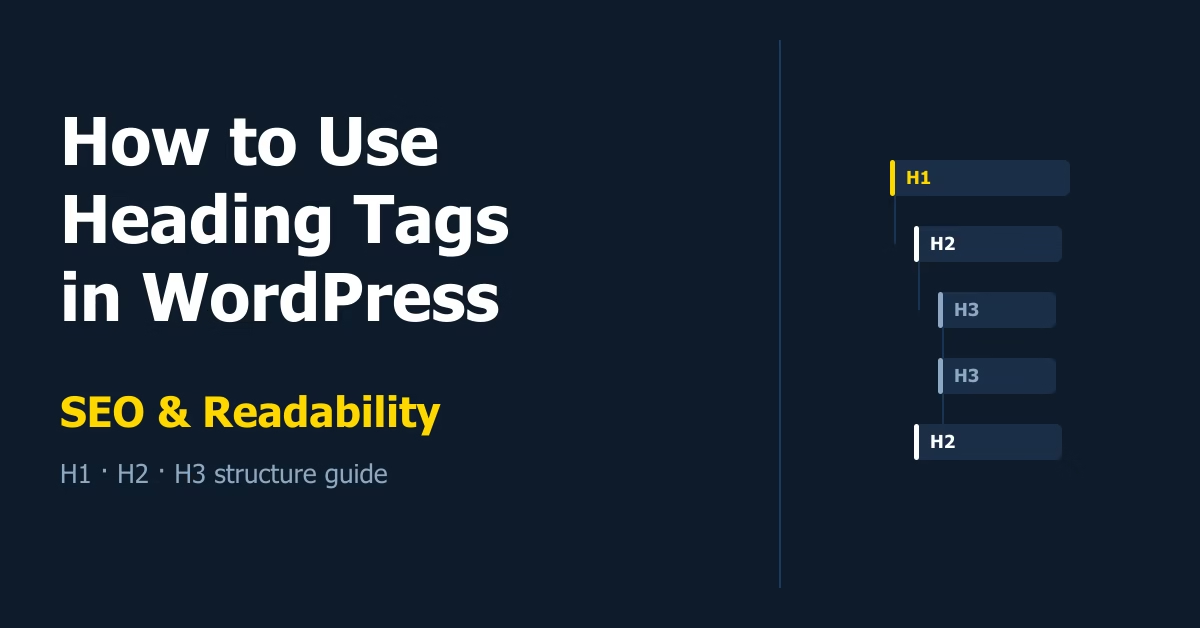
Heading tags run from H1 to H6, but in practice you’ll almost never need anything below H3 on a standard WordPress post or page. The structure works like an outline:
- H1 — the page title; one per page, covers the overall topic
- H2 — main sections; each introduces a distinct part of the article
- H3 — sub-sections within an H2; used when a section needs further breakdown
Think of it as a document outline. H1 is the document title. H2s are chapter headings. H3s are section headings within a chapter. The hierarchy must flow in order — you can move down a level or back up, but you should not skip from H2 directly to H4.
Step 2 — Let WordPress handle H1 automatically
In most WordPress themes, the post or page title is output as an H1 automatically. You do not need to add an H1 manually inside the content editor. Adding one manually would give the page two H1 tags, which is a structural error.
If you’re unsure whether your theme outputs the title as H1, right-click the title on the published post, inspect the element, and check whether it’s wrapped in <h1>. If it is, leave it alone and start your content with H2 headings.
Step 3 — Structure your post with H2 sections
Before writing, map out the main sections your post needs. Each distinct topic or step gets an H2. A typical blog post might have four to six H2 sections covering the quick answer, the main steps or explanation, practical tips, common mistakes, and a conclusion.
H2 headings should be specific and descriptive. “Why This Matters” is fine when paired with a clear post title. “Details” or “More Information” tells neither a reader nor a search engine anything useful.
Step 4 — Add H3 headings for detail within a section
Not every H2 section needs sub-sections. Use H3 when a section genuinely has multiple components that benefit from their own label — such as individual steps in a process, or distinct scenarios being compared.
If a section is two or three paragraphs covering a single idea, an H2 is all it needs. Adding H3s just to add visual variety dilutes the structure rather than improving it.
Step 5 — Add headings using the Heading block in WordPress
In the WordPress block editor, click the + icon to add a new block and select Heading. The default level is H2. To change it, click the H2 label in the block toolbar and select H3 (or another level) from the dropdown.
Never use paragraph text and manually increase the font size or apply bold to simulate a heading. That changes the visual appearance only — the underlying HTML is still a paragraph tag, which means it contributes nothing to SEO structure and nothing to screen reader navigation.
Step 6 — Write clear, descriptive heading text
Headings should describe what the section actually covers. A reader skimming your post should be able to read only the headings and understand the shape of the whole article.
Include your target keyword or a close variant in at least one H2 heading where it fits naturally. Don’t force the keyword into every heading — search engines read the full content, and over-optimised headings often read poorly for human visitors.
Practical Tips
After drafting a post, scroll through looking only at the headings. They should read like a clean outline of the article. If the sequence doesn’t make sense as a standalone list, the structure needs work before the post goes live.
For longer posts — anything with six or more H2 sections — consider adding a table of contents near the top. A well-placed contents block helps readers jump to the section they need immediately and keeps bounce rate down. See how to add a table of contents in WordPress for the plugin and manual options available.
Keep heading text short. A heading is a label, not a sentence. In most cases, six to ten words is enough. If you need more than that to describe a section, the section itself may be doing too much.
Common Mistakes
- Multiple H1 tags — the post title is already H1. Adding another H1 in the content editor creates a structural conflict. Start content headings at H2.
- Styled paragraphs masquerading as headings — bold, large text looks like a heading but isn’t. Use the Heading block.
- Skipping levels — jumping from H2 to H4 without an H3 between them breaks the hierarchy. It is not a catastrophic error, but it signals poor structure to both search engines and screen readers.
- Vague heading text — “Overview”, “Tips”, “Step 1” without any context. Headings should make sense out of context.
- Headings on every paragraph — using headings to break up text rather than to mark genuine section changes inflates the structure artificially. If content belongs under one heading, keep it there.
Headings vs Other Formatting Options
Heading tags are for structural sections of content. They are not for emphasis, decoration, or creating visual variety. If you want to highlight a term or a key phrase, use bold. If you’re listing short items, use a bullet list. If you’re labelling a UI element or a small callout inside a paragraph, leave it as paragraph text.
The test is simple: does removing the heading from its current level break the logical outline of the page? If yes, it belongs as a heading. If the content would read fine as a bold paragraph or a list item, it probably doesn’t need to be a heading at all.
Conclusion
Correct heading structure is one of the quickest wins available on any WordPress site — one H1 from the title, H2 for each main section, H3 where a section needs sub-division, and everything added through the Heading block rather than styled paragraph text. Review existing posts with this checklist and you’ll likely find improvements that take minutes to fix but improve both readability and search visibility.

Etienne Basson works with website systems, SEO-driven site architecture, and technical implementation. He writes practical guides on building, structuring, and optimizing websites for long-term growth.