
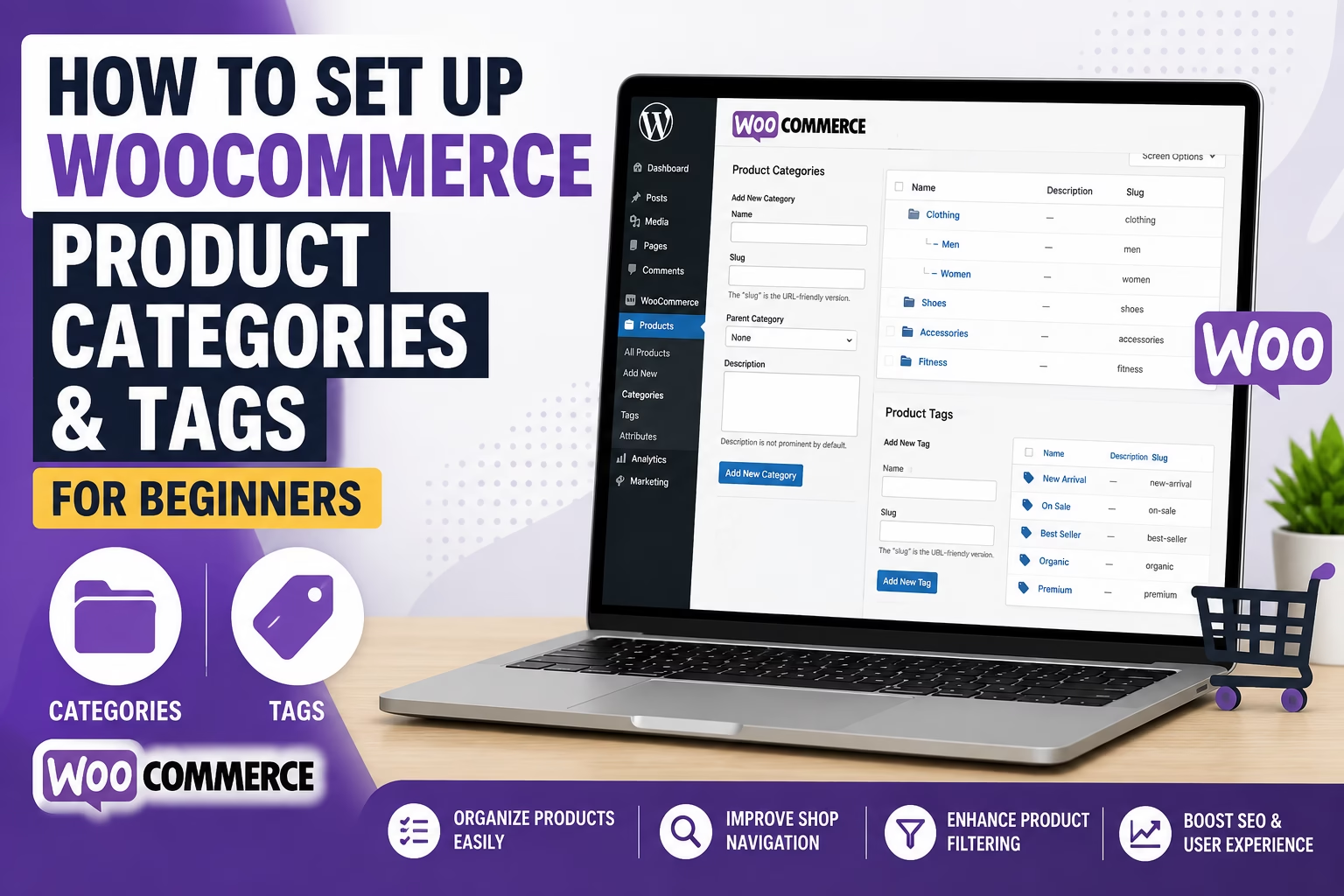
When people first build a WooCommerce store, they usually focus on adding products, setting prices, and configuring payments. Product organization often gets ignored until the store becomes difficult to manage.
I see this regularly on small WooCommerce sites. Products get added quickly without a clear structure, categories overlap, tags become inconsistent, and customers struggle to browse the store properly. This also affects SEO because search engines rely on clean product organization to understand what your store sells.
WooCommerce product categories and tags help organize products for both visitors and search engines. A well-structured store is easier to navigate, easier to filter, and easier to grow as you add more products.
Quick Answer
WooCommerce product categories group products into broad sections, while tags describe specific product details or characteristics.
For example:
- Category: Shoes
- Subcategory: Running Shoes
- Tags: Lightweight, Waterproof, Trail Running
In most WooCommerce stores I build, categories form the main store structure while tags support filtering and product discovery.
Why Product Categories and Tags Matter
Product organization affects more than store appearance.
Proper categories and tags help with:
- Store navigation
- Product filtering
- WooCommerce SEO
- Internal linking
- User experience
- Product discovery
- Scalability as the store grows
Without structure, customers often abandon stores because they cannot quickly find products.
Good organization also creates cleaner URLs and archive pages, which can help product visibility in search engines.
For example:
yourstore.com/product-category/mens-shoes/
is much clearer than placing every product in a single uncategorized section.
Understanding the Difference Between Categories and Tags
Before setting them up, it helps to understand how WooCommerce uses each one.
Product Categories
Categories are the primary structure of your store.
They group products into broad sections.
Examples:
- Clothing
- Electronics
- Home Decor
- Fitness Equipment
Categories can also contain subcategories.
For example:
- Clothing
- Men’s Clothing
- Women’s Clothing
- Accessories
In most stores, categories appear in menus, breadcrumbs, and shop navigation.
Product Tags
Tags are more specific labels.
They describe product features, styles, materials, or characteristics.
Examples:
- Cotton
- Wireless
- Waterproof
- Minimalist
- Organic
Tags are usually used for filtering and related products rather than primary navigation.
One mistake I frequently see is using tags like categories or creating hundreds of nearly identical tags. That usually creates thin archive pages and unnecessary clutter.
How to Create Product Categories in WooCommerce
Step 1: Open Product Categories
In WordPress:
- Go to Products
- Select Categories
This opens the WooCommerce product category manager. WooCommerce also provides official documentation on managing product categories, tags, and attributes if you want additional configuration details.
Step 2: Add a New Category
You can now create your category.
Fill in:
- Name
- Slug
- Parent category (optional)
- Description
- Thumbnail image (optional)
For example:
- Name: Running Shoes
- Slug: running-shoes
- Parent Category: Shoes
I usually recommend keeping slugs short and readable because they become part of your store URLs.
Step 3: Create a Logical Store Structure
Try to keep your category structure simple.
A beginner mistake is creating too many top-level categories immediately.
Instead of:
- Running Shoes
- Trail Shoes
- Gym Shoes
- Casual Shoes
- Walking Shoes
You may structure it as:
- Shoes
- Running Shoes
- Trail Shoes
- Casual Shoes
This keeps navigation cleaner.
How to Create Product Tags in WooCommerce
Step 1: Open Product Tags
In WordPress:
- Go to Products
- Select Tags
Step 2: Add Tags
Create tags based on meaningful product traits.
Examples:
- Eco-Friendly
- Leather
- Handmade
- Lightweight
Avoid creating tags that only apply to a single product unless the tag has real browsing value.
In my experience, stores work better when tags stay focused and limited rather than becoming a huge uncontrolled list.
How to Assign Categories and Tags to Products
After creating categories and tags:
- Open a product
- Look at the right sidebar
- Select categories
- Add tags
- Update the product
Products can belong to multiple categories if necessary, but it is usually better to keep the primary category clear.
For example:
A hiking backpack may belong to:
- Outdoor Gear
- Hiking Equipment
But assigning it to ten unrelated categories creates confusion.
How Categories Improve WooCommerce SEO
WooCommerce category pages can rank in Google.
This is especially useful for stores targeting broader keywords.
For example:
- “Men’s running shoes”
- “Organic skincare products”
- “Minimalist office furniture”
Category pages often become strong SEO landing pages because they contain multiple related products.
I usually recommend adding:
- Unique category descriptions
- Optimized SEO titles
- Meta descriptions
- Internal links
- Category images
This helps category pages perform better in search results.
How Tags Support Product Filtering
Tags work especially well with WooCommerce filter plugins. If you also want customers to filter products by attributes, tags, or categories, see How to Add Product Filters to WooCommerce for Beginners.
For example, customers can filter products by:
- Color
- Material
- Style
- Features
- Brand
This improves usability for larger stores.
However, tags should remain consistent.
For example, avoid using:
- Waterproof
- Water-proof
- Water Resistant
for similar product traits.
Consistency matters for filtering and organization.
Common Mistakes to Avoid
Creating Too Many Categories
A store with dozens of top-level categories quickly becomes difficult to navigate.
Keep the structure simple.
Using Tags Like Categories
Tags should support products, not replace your main structure.
Leaving Products Uncategorized
Uncategorized products create a poor browsing experience.
I usually rename or disable the default “Uncategorized” category early during WooCommerce setup.
Creating Duplicate Tags
Small spelling differences create unnecessary archive pages.
For example:
- T-Shirt
- Tshirt
- T Shirts
These should usually be standardized into one format.
Ignoring SEO on Category Pages
Many store owners optimize products but ignore category archives entirely.
Category pages can become important traffic sources.
When to Use Categories vs Tags
Use categories when:
- Organizing major store sections
- Building navigation menus
- Structuring your shop
- Creating SEO landing pages
Use tags when:
- Describing product features
- Supporting filters
- Connecting similar products
- Improving product discovery
In smaller stores, you may not need many tags at all.
For very small catalogs, categories alone may be enough.
Practical Structure Example
Here is a simple WooCommerce structure example for a fitness store.
Categories
- Fitness Equipment
- Dumbbells
- Resistance Bands
- Cardio Machines
Tags
- Adjustable
- Foldable
- Beginner Friendly
- Home Gym
- Compact
This creates a clean structure without unnecessary complexity.
Conclusion
WooCommerce product categories and tags help organize your store for both customers and search engines.
Categories should create the main structure of the store, while tags support filtering and product discovery.
A simple, consistent structure usually works better than an overly detailed one. In most WooCommerce stores I work on, keeping categories organized early prevents major cleanup work later as the product catalog grows.

Etienne Basson works with website systems, SEO-driven site architecture, and technical implementation. He writes practical guides on building, structuring, and optimizing websites for long-term growth.