WordPress Settings Explained: What to Configure Right After Installation
The six WordPress settings screens to configure right after installation — permalinks, reading, discussion, general, media, and privacy — and why the order matters.
Essential Steps to Create Your Website
Website Setup covers the core configuration decisions that shape how a site performs, behaves, and scales from the start — choosing a platform, initial settings, theme or template selection, URL structure, core page creation, and getting comfortable with your chosen editor. The emphasis throughout is on sequencing: many of these decisions are difficult or disruptive to change once content is live and indexed.
Whether this is a first build or a fresh setup for a client project, this category covers the choices that matter most and the defaults that need changing before anything goes public — plus the decisions that are easy to put off but expensive to revisit later, like category structure, navigation hierarchy, and how pages and posts relate to each other.
The articles assume a live hosting environment and a real site rather than a local sandbox. The goal is a site that’s genuinely ready to publish on, not one that technically works but still needs untangling a few months in.
The six WordPress settings screens to configure right after installation — permalinks, reading, discussion, general, media, and privacy — and why the order matters.
How to create a WordPress navigation menu in a classic or block theme — including how to add pages, set dropdown sub-menus, assign locations, and avoid the most common setup mistakes.
How to load Google Fonts or self-host custom fonts in WordPress without a plugin, and how to apply them to headings and body text via CSS.
WordPress includes a built-in way to add custom CSS through the Customizer, but there are faster and more reliable methods depending on how your site is set up. This guide covers every option — from the Customizer to child themes to functions.php — so you can choose the right approach for your site.
A slow WordPress site costs visitors and search rankings. This guide covers the practical steps to improve WordPress speed and mobile performance — caching, image optimisation, minification, CDN setup, and the common mistakes that undo the gains.
A practical checklist for securing a new WordPress website. Covers updates, strong passwords, two-factor authentication, login protection, security plugins, SSL, and automated backups — the steps that block most common attacks.
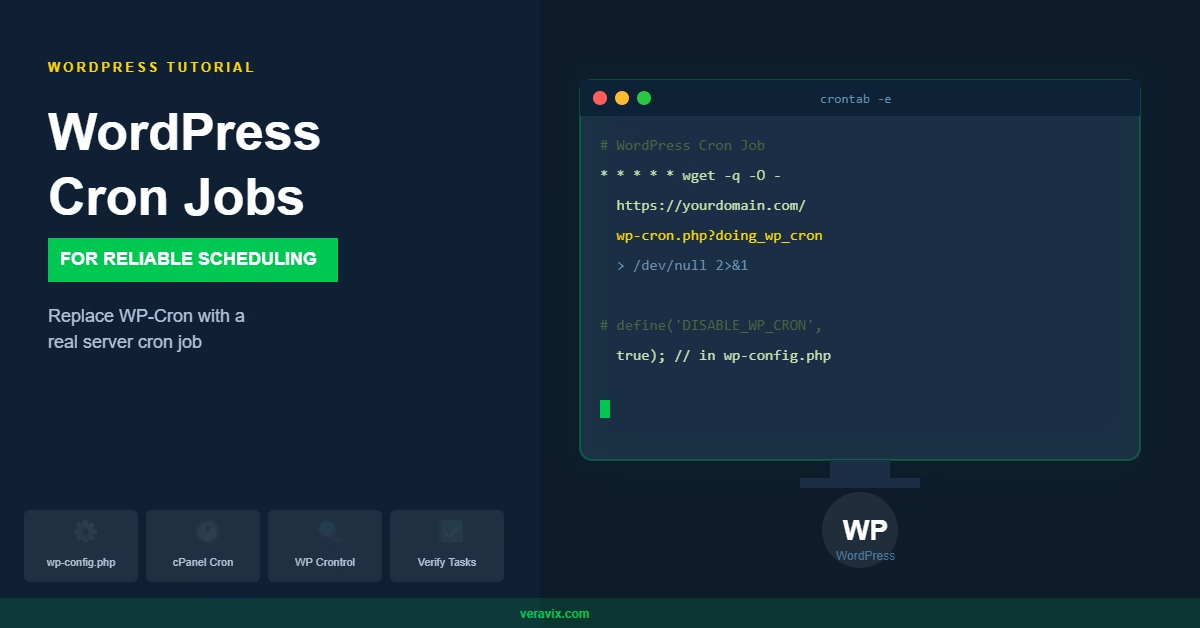
WordPress uses WP-Cron to run scheduled tasks, but it only fires on page load — which means tasks can be delayed on low-traffic sites. This guide explains how WP-Cron works, how to check what’s scheduled, and how to replace it with a real server cron job for reliable task execution.
WordPress allows unlimited login attempts by default, making it an easy target for brute force attacks. This guide explains how to limit login attempts in WordPress using a plugin, what settings to configure, and how this fits into a broader website security setup.
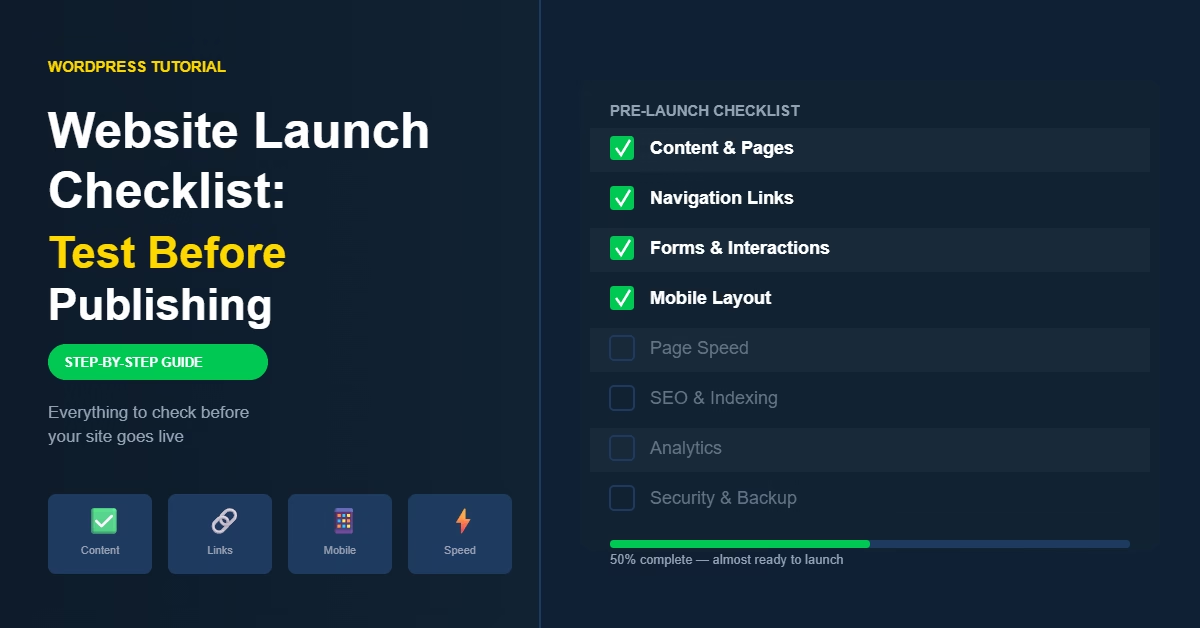
Before publishing a WordPress site, a structured testing pass catches the problems that are easy to miss — broken forms, disabled indexing, missing analytics, and mobile layout issues. This checklist covers everything to verify before going live.
Installing WordPress takes a few minutes using the 1-click installer in your hosting control panel. This guide covers both the automatic and manual installation methods, what to configure immediately after setup, and the common mistakes worth avoiding.